
Adding an Instagram feed to your WordPress website is one of the easiest ways to make your site more engaging, visually appealing, and dynamic.
Whether you want to showcase social proof, increase followers, or enhance your site’s design, learning how to embed Instagram feed on WordPress can significantly improve your website performance.
In this step-by-step guide, you’ll learn multiple methods to add an Instagram widget for WordPress, including plugins, manual embedding, and third-party tools.
What Does It Mean to Embed Instagram Feed on WordPress?
To embed Instagram feed on WordPress, you display your Instagram posts directly on your website using plugins, widgets, or embed code.
This can include:
- Instagram photo grids
- Reels and video feeds
- Shoppable feeds
- Hashtag-based content
👉 Using an Instagram widget for WordPress, your website automatically updates whenever you post new content on Instagram.
Why Add an Instagram Feed to WordPress?

Before diving into the steps, here’s why embedding an Instagram feed matters:
- Keeps your website content fresh
- Boosts user engagement
- Builds trust through social proof
- Improves website design
- Increases Instagram followers
Methods to Embed Instagram Feed on WordPress
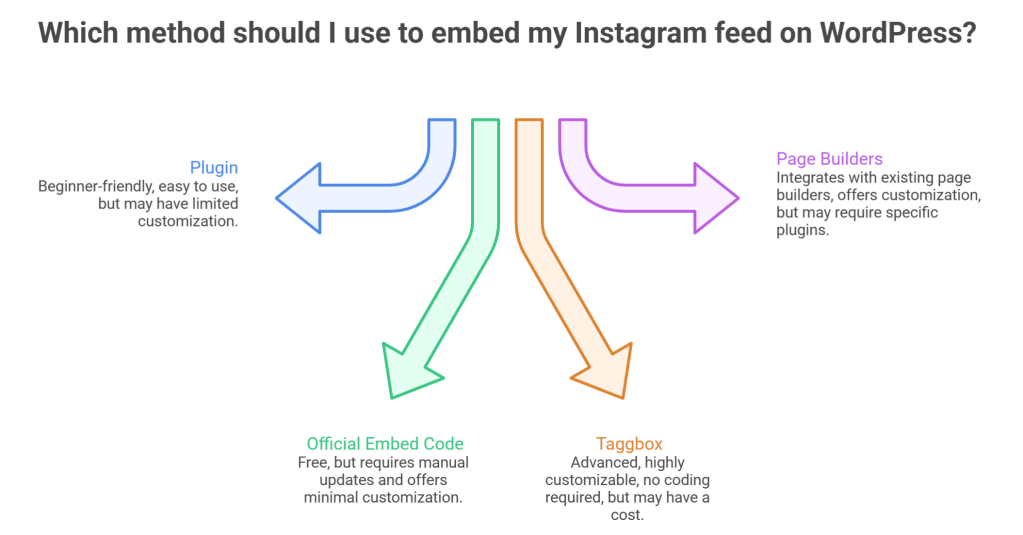
There are several ways to add an Instagram feed. Below are the most effective and beginner-friendly methods.
Method 1: Using a WordPress Plugin (Beginner-Friendly)
This is the easiest way to add an Instagram widget for WordPress.
Steps:
- Go to your WordPress dashboard
- Navigate to Plugins → Add New
- Search for “Instagram Feed plugin”
- Install and activate the plugin
- Connect your Instagram account
- Customize your feed layout (grid, carousel, etc.)
- Copy the shortcode
- Paste it into any page, post, or widget area
👉 This method is ideal for users who want a quick embed Instagram feed on WordPress setup without coding.
Method 2: Using Instagram’s Official Embed Code
You can manually embed individual posts using Instagram embed code.
Steps:
- Open any Instagram post
- Click on the three dots (menu)
- Select “Embed”
- Copy the embed code
- Go to your WordPress editor
- Add a Custom HTML block
- Paste the code
👉 This method works best for single Instagram feed post examples, not full feeds.
Method 3: Using Taggbox (Advanced & Customizable)
Taggbox is a powerful platform to create fully customizable Instagram feeds for WordPress websites.
It allows you to build a visually appealing Instagram widget for WordPress without coding.
Step-by-Step Guide:
- Visit Taggbox and sign up/login
- Click on Create Widget
- Choose Instagram as your source
- Select feed type:
- Profile posts
- Hashtags
- Mentions
- Connect your Instagram account
- Moderate and filter content (optional)
- Customize design:
- Grid or slider layout
- Colors and themes
- Post styles
- Click on Publish
- Select WordPress as your platform
- Copy the embed code or shortcode
- Go to your WordPress dashboard
- Paste the code into:
- A page/post (Custom HTML block)
- Or widget area
Why Use Taggbox?
- No coding required
- Advanced customization
- Responsive design
- Supports UGC and hashtag feeds
👉 This is one of the most powerful ways to embed Instagram feed on WordPress professionally.
Method 4: Using Page Builders (Elementor, Gutenberg, etc.)
If you’re using a page builder, adding an Instagram widget for WordPress becomes even easier.
Steps:
- Open your page builder (Elementor/Gutenberg)
- Drag and drop an HTML or social feed widget
- Paste your embed code or shortcode
- Customize layout and styling
- Publish the page
Best Practices for Embedding Instagram Feed on WordPress
To maximize performance and SEO:
✅ Keep It Lightweight
Avoid heavy plugins that slow your site.
✅ Match Your Website Design
Ensure the feed aligns with your branding.
✅ Limit Number of Posts
Display 6–9 posts for better speed and clarity.
✅ Make It Clickable
Link posts to Instagram or product pages.
✅ Optimize for Mobile
Ensure responsiveness across devices.
Common Mistakes to Avoid
- ❌ Using too many plugins
- ❌ Ignoring mobile responsiveness
- ❌ Embedding too many posts
- ❌ Slow-loading widgets
- ❌ Not updating or moderating content
Final Thoughts
Learning how to embed Instagram feed on WordPress is one of the simplest ways to enhance your website without constant updates.
Whether you use a plugin, manual embed, or a tool like Taggbox, adding an Instagram widget for WordPress can:
- Improve engagement
- Build trust
- Enhance design
- Grow your social presence
If you want a scalable and professional solution, third-party tools provide the most flexibility and control.
FAQs
How do I embed Instagram feed on WordPress?
You can use plugins, embed code, or third-party tools to add Instagram feeds to your WordPress site.
What is the best Instagram widget for WordPress?
Plugins and platforms like Taggbox offer highly customizable Instagram widgets.
Can I embed Instagram feed without a plugin?
Yes, you can use Instagram’s official embed code in a Custom HTML block.
Is it free to add Instagram feed to WordPress?
Yes, many plugins and tools offer free versions for basic functionality.


Leave a comment