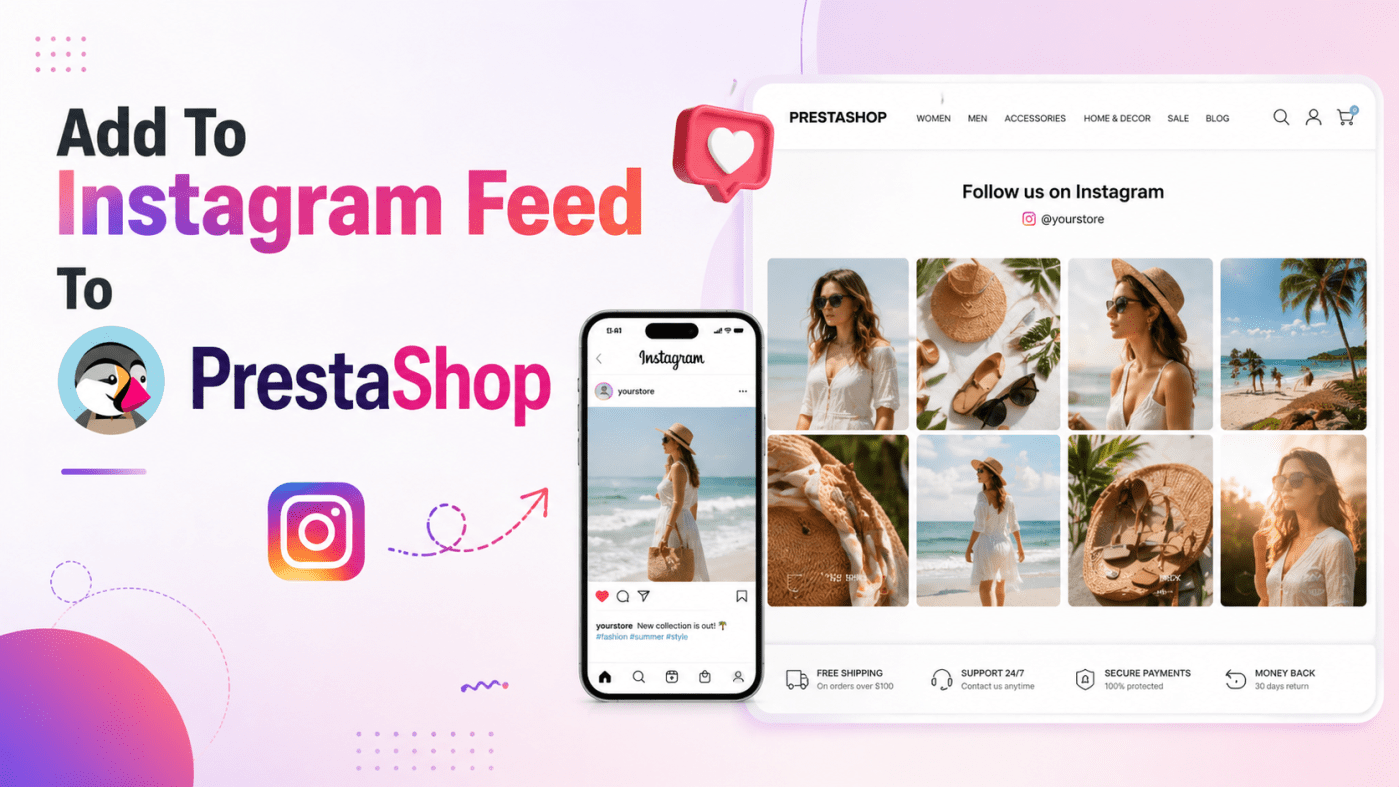
PrestaShop is a popular eCommerce platform that helps businesses create and customize online stores. It gives store owners flexibility to manage products, design their storefront, and build a shopping experience around their brand. PrestaShop also highlights customization, modules, and themes as important parts of building an online store.
But having a functional store is not enough. Modern shoppers want proof before they buy. They want to see real product photos, customer experiences, styling ideas, reviews, and social media activity. This is where adding an Instagram feed to your PrestaShop website can help.
An Instagram feed makes your store more visual, fresh, and trustworthy. Instead of showing only product images, you can display real Instagram posts, reels, customer content, brand campaigns, and hashtag-based content directly on your PrestaShop store.
For this, Taggbox is a useful option. Taggbox allows brands to create an Instagram widget for websites and display posts, reels, UGC, hashtag feeds, and more. It also supports customization, mobile responsiveness, and shoppable Instagram posts, making it suitable for eCommerce stores.
Why Add Instagram Feed to a PrestaShop Website?
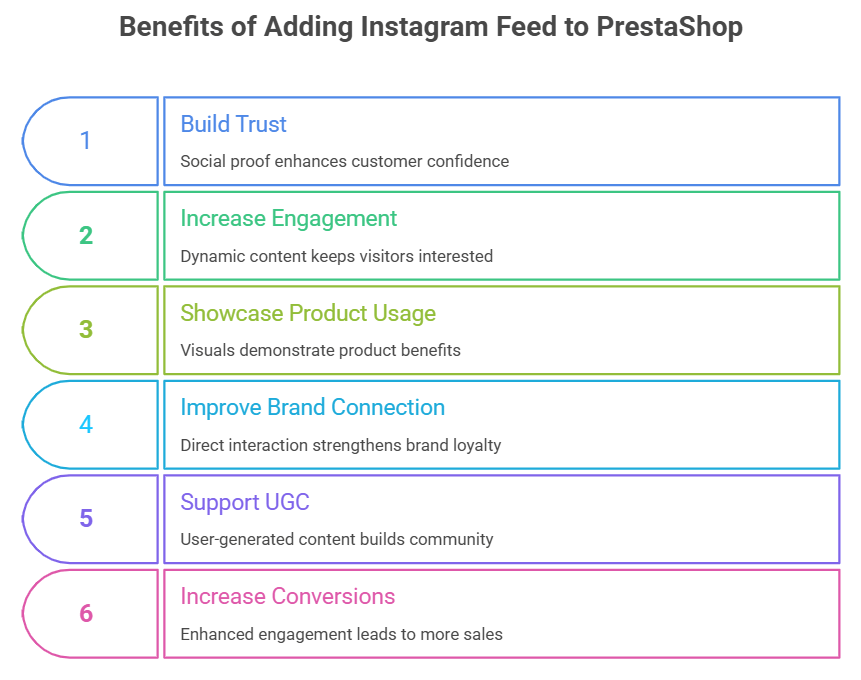
1. Builds Trust with Real Social Proof
Online shoppers often check reviews, social media pages, and customer photos before making a purchase. When you add an Instagram feed to your PrestaShop store, you can show real posts from your brand, customers, influencers, or hashtag campaigns. This helps visitors feel more confident about your products.
2. Makes Your Store More Engaging
A product page with only text and standard images can feel simple. An Instagram feed adds fresh visuals and gives visitors more content to explore. This can make your website feel more active and engaging.
3. Helps Showcase Product Usage
Instagram is perfect for showing how products look in real life. For example, a fashion store can show outfit ideas, a beauty brand can show customer results, and a home decor store can show room styling ideas. These instagram feed examples help customers imagine the product better.
4. Improves Brand Connection
Your PrestaShop website and Instagram page should not work separately. By embedding Instagram content on your website, you connect your social media activity with your online store. Visitors can see your brand personality, latest updates, and social presence in one place.
5. Supports User-Generated Content
User-generated content is powerful because it feels authentic. With Taggbox, brands can collect Instagram content from hashtags, handles, mentions, reels, personal accounts, or business accounts, depending on the feed source they choose.
6. Can Help Increase Conversions
If users see real customers using your products, they may feel more ready to buy. Taggbox also offers shoppable Instagram post features, where brands can add product links or buy buttons to Instagram content. This can turn visual inspiration into a shopping action.
How to Add Instagram Feed to PrestaShop Website Using Taggbox
Adding an Instagram feed to a PrestaShop website is easier when you use a widget tool like Taggbox. Instead of coding everything from scratch, you can create the feed, customize it, generate an embed code, and add it to your PrestaShop store.
Step 1: Create Your Taggbox Account
First, go to Taggbox and create your account. Once you log in, choose the option to create an Instagram widget. Taggbox provides an Instagram feed widget that can display Instagram posts, reels, hashtag feeds, and UGC on websites.
Step 2: Select Instagram as the Source
After creating your widget, select Instagram as your content source. You can collect content from different Instagram sources such as hashtags, handles, mentions, reels, personal accounts, or business accounts. This gives you flexibility to create the exact type of feed you want.
For example, if you want to show your brand posts, you can connect your Instagram handle. If you want to show customer content, you can use a branded hashtag. If you want to promote a campaign, you can create a campaign-specific Instagram feed.
Step 3: Moderate the Content
Not every Instagram post needs to appear on your website. Choose the best posts that match your brand, product, and campaign. This is especially important for eCommerce stores because your website feed should look clean, professional, and conversion-focused.
You can display product photos, customer reviews, influencer posts, reels, and campaign content. This helps you create better instagram feed examples for your visitors.
Step 4: Customize the Instagram Widget
Once your content is selected, customize the design of your Instagram feed. Taggbox offers design options such as pre-built themes, layouts, card styles, and custom CSS. It also allows brands to match the Instagram widget with their website design by adjusting design elements like fonts, buttons, and colors.
Choose a layout that fits your PrestaShop store. For a homepage, a grid or slider layout can work well. For product pages, a shoppable gallery can be more useful. For landing pages, a clean carousel can keep the section simple and attractive.
Step 5: Generate the Embed Code
After customization, generate the embed code from Taggbox. Taggbox explains that users can create and customize the Instagram feed, generate the embed code, copy it, and paste it into the backend of their website where they want the widget to appear.
This is why Taggbox is one of the useful Instagram widget tools for store owners who do not want complex development work. Some users may even search for insatgram widget tools by mistake, but the goal is the same: finding an easy widget to display Instagram content on a website.
Step 6: Add the Code to Your PrestaShop Website
Now, paste the Taggbox embed code into your PrestaShop website. The exact placement depends on where you want to display the Instagram feed.
You can add it to:
Home page
Product pages
Category pages
Landing pages
Footer section
Campaign pages
About us page
For PrestaShop stores, custom HTML/JavaScript block modules can help place external widgets in different store positions. The PrestaShop Addons marketplace lists a Custom HTML Block module that supports HTML/JavaScript blocks in built-in and custom hooks.
Step 7: Preview and Publish
Before publishing, preview the Instagram feed on desktop and mobile. Taggbox states that its Instagram widget is mobile-friendly and adjusts to desktop, tablet, and mobile screens. This is important because many eCommerce shoppers browse from mobile devices.
Check the feed layout, loading speed, button visibility, spacing, and product links. Once everything looks good, publish it on your PrestaShop store.
Best Places to Show Instagram Feed on PrestaShop
The placement of your Instagram feed matters. On the homepage, it can create a strong first impression. On product pages, it can show real product usage and increase buyer confidence. On category pages, it can help users explore collections visually. On landing pages, it can support campaign trust.
For fashion, beauty, home decor, food, fitness, accessories, electronics, and lifestyle brands, Instagram feeds can work especially well because visual proof plays a major role in buying decisions.
Conclusion
Adding an Instagram feed to your PrestaShop website is a simple way to make your store more visual, engaging, and trustworthy. It helps you show real social proof, product usage, customer content, influencer posts, reels, and branded campaigns directly on your online store.
With Taggbox, the process becomes easier. You can collect Instagram content, customize the widget, moderate posts, create shoppable galleries, and embed the feed on your PrestaShop website without complex coding. For eCommerce brands that want to improve engagement and conversions, Taggbox is a strong choice for adding Instagram feeds to PrestaShop.
A good Instagram feed does more than decorate your website. It helps visitors trust your brand, explore your products, and take action with more confidence.


Leave a comment