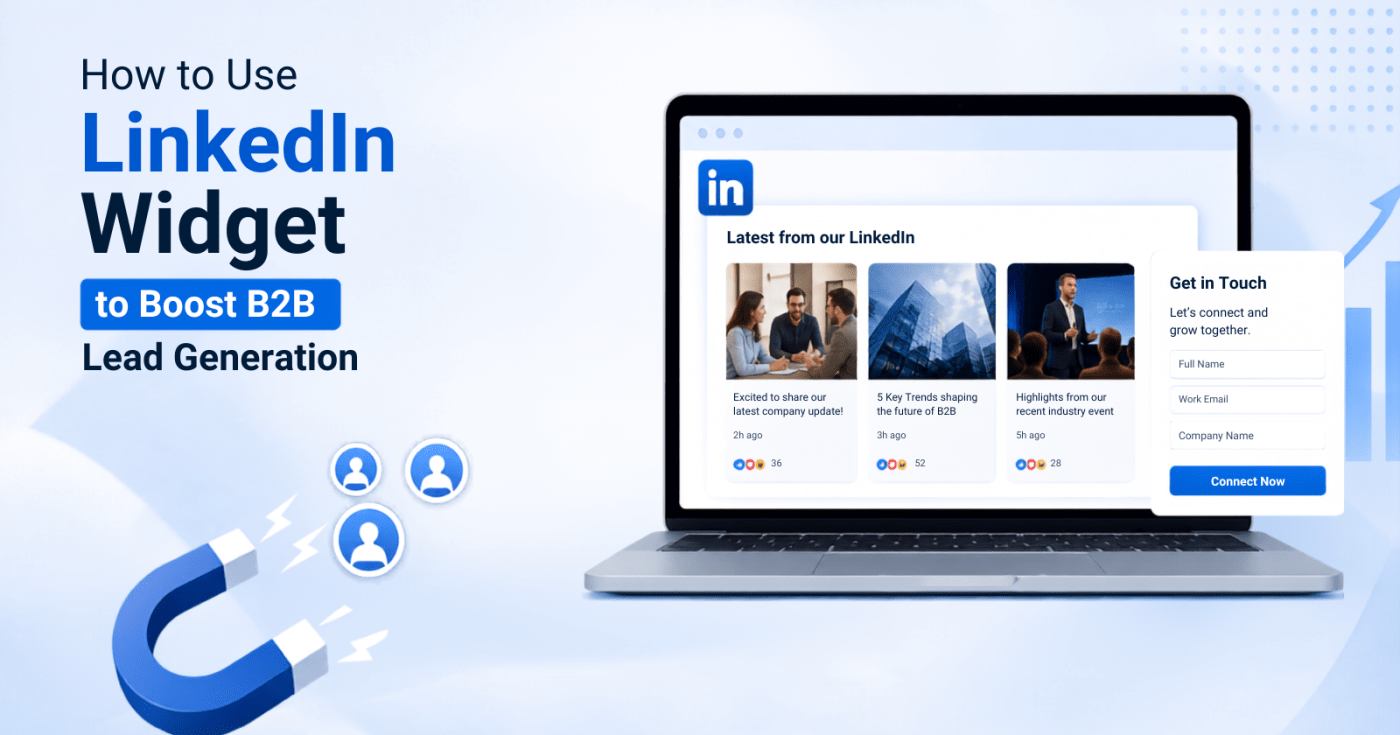
If your business sells to other businesses, LinkedIn is probably already sitting at the top of your marketing channel list. It’s where decision-makers scroll during their coffee breaks, where case studies get shared, and where a well-timed comment can turn into a sales call. But here’s the part most B2B teams miss: all that activity stays locked inside LinkedIn unless you bring it onto your own website. That’s where a LinkedIn widget comes in.
In this guide, we’ll walk through exactly how a LinkedIn feed widget helps generate more B2B leads, where to place it, and how to set one up without any coding help.
Why LinkedIn Content Matters More on Your Website Than on LinkedIn Itself
Think about your buyer’s journey for a second. A prospect finds your company, maybe through a Google search or a referral, and lands on your website. At this point, they’re evaluating whether you’re worth trusting with their budget. They’re not scrolling LinkedIn right now, they’re on your site, comparing you to two other vendors in open tabs.
If your LinkedIn posts, client mentions, or industry commentary only exist on LinkedIn, this visitor never sees them. All that credibility you built stays stranded on a platform they’re not currently browsing. A LinkedIn feed widget pulls post and show same content directly on your website, right where the buying decision is actually happening.
What a LinkedIn Widget Actually Does
A LinkedIn feed widget is a small embeddable block that displays your LinkedIn activity, company page updates, personal posts, hashtag mentions, or even posts from your whole sales team and directly on your website. Instead of manually screenshotting posts and pasting them onto a page (which nobody has time for and which stops updating the moment you publish it), the social media feed widget pulls fresh content automatically.
For B2B companies specifically, this usually means showing:
- Company page announcements and product updates
- Founder or executive thought leadership posts
- Client testimonials or tagged mentions
- Industry commentary that builds authority
- Team posts from sales or marketing that show up under a branded hashtag
How a LinkedIn Widget Actually Drives B2B Leads
1. It Turns Your Homepage Into Proof, Not Just a Pitch
B2B buyers are skeptical by default, they’ve seen enough bold claims on landing pages to be numb to them. A live feed of real posts, real engagement, and real conversations does something a paragraph of marketing copy can’t: it shows activity happening in real time. Visitors can see that actual people follow your page, comment on your posts, and engage with your leadership. That’s a trust signal a static “About Us” section can’t match.
2. It Keeps Your Website Content Fresh Without Extra Work
Search engines and visitors both reward websites that don’t look abandoned. A landing page that hasn’t changed in eight months signals a company that might be slowing down. A widget pulling in new posts every week keeps that page looking active, without your team writing a single extra line of website copy.
3. It Extends the Life of Content You’ve Already Created
Every LinkedIn post your team writes takes time, research, drafting, getting it approved, publishing. On LinkedIn alone, that post has a shelf life of maybe 48 hours before the algorithm buries it. Embedding it on your website gives it a second life. A case study post from three months ago can still be sitting on your services page, working quietly in the background, long after LinkedIn has moved on from it.
4. It Builds Trust on High-Intent Pages
Not every page on your site deserves a widget, but your pricing page, case studies section, or “About” page absolutely benefit from one. These are the pages visitors reach right before they decide to fill out a form or book a call. Showing recent LinkedIn engagement here, comments from real prospects, replies from your team, tagged client posts, nudges hesitant visitors toward that final step.
5. It Encourages Visitors to Follow You, Extending the Relationship
Not every website visitor is ready to buy today. Many B2B sales cycles stretch across weeks or months. A LinkedIn widget with a “Follow” button gives cold visitors a low-commitment way to stay connected. Instead of losing them entirely, you keep them in your orbit until they’re ready to reach out.
6. It Supports Employee Advocacy at Scale
If your sales or leadership team posts regularly on LinkedIn, a widget can pull in a branded hashtag feed that aggregates everyone’s posts in one place. This does two things: it gives your team a reason to keep posting (their work gets visible placement on the company site), and it shows prospects that your whole organization, not just the marketing department and engaged and credible.
Where to Place a LinkedIn Widget for Maximum Lead Impact
Placement matters as much as the widget itself. A few spots that consistently perform well for B2B sites:
- Homepage sidebar or footer – passive visibility for every visitor
- Case studies or client success page – reinforces social proof right where buyers look for it
- Careers page – helps with recruitment marketing alongside lead gen
- Pricing page – reduces last-minute hesitation before checkout or demo requests
- Blog sidebar – keeps readers engaged with your brand beyond the article they came for
Avoid cramming a widget onto every page. One or two well-placed feeds outperform a widget scattered across a site where it starts to feel like clutter.
How to Add a LinkedIn Widget to Your Website Using Tagembed
Setting this up doesn’t require a developer. Here’s the general process:
- Connect your LinkedIn account or page to your widget tool.
- Choose your feed type – company page, personal profile, or hashtag-based aggregation.
- Customize the layout to match your website’s branding fonts, colors, grid or carousel view.
- Set moderation rules if you’re pulling in a hashtag feed, so only relevant posts show up.
- Copy the embed code and paste it into your website builder or CMS.
- Publish and monitor – check periodically that the feed is updating and matches your site design as your brand evolves.
Tagembed handles this without needing any code, which means marketing teams can set it up and adjust it without pulling in a developer every time something needs tweaking.
A Few Best Practices Worth Following
- Don’t embed everything. Filter out posts that are purely internal or irrelevant to a website visitor.
- Match your website’s design language. A widget that looks out of place breaks trust instead of building it.
- Pair it with a clear call to action nearby. A feed alone doesn’t convert, a “Book a Demo” button next to it does the actual work.
- Review the feed monthly. LinkedIn content ages fast; make sure what’s showing is still relevant to your current offering.
Final Thoughts
Lead generation in B2B rarely comes down to one big tactic, it’s a series of small trust-building moments that add up. A LinkedIn widget is one of those moments. It takes content your team has already created, content that’s already proven to resonate with your audience on LinkedIn, and puts it to work on the one platform you fully control: your own website.
If you’re already investing time into LinkedIn, embedding that effort onto your site is one of the lowest-effort, highest-impact additions you can make to your lead generation strategy this year.
Frequently Asked Questions
1. What is a LinkedIn widget?
A LinkedIn widget is an embeddable block of code that displays your LinkedIn activity posts, company updates, or hashtag mentions directly on your website, updating automatically as you post new content.
2. Do I need coding knowledge to add a LinkedIn widget to my website?
No. Tools like Tagembed let you set up and customize a widget through a simple dashboard, then paste a ready-made embed code into your website builder or CMS. No development work is required.
3. Can a LinkedIn widget actually generate leads, or does it just look nice?
It supports lead generation rather than driving it on its own. By showing real engagement and recent activity on high-intent pages like pricing or case studies, it builds the trust that pushes hesitant visitors toward filling out a form or booking a call.
4. Where should I place a LinkedIn widget for the best results?
High-intent pages work best, your homepage, case studies section, pricing page, or careers page. Avoid adding it to every page on your site, since that can make it feel like clutter rather than proof.
5. Can I show posts from multiple LinkedIn accounts in one widget?
Yes. You can aggregate posts from your company page along with individual team members, or pull everything under a branded hashtag so your whole team’s activity shows up in one feed.
6. Will an outdated LinkedIn widget hurt my website?
It can. A LinkedIn feed that stops updating or shows irrelevant old posts works against you. Review your widget periodically to make sure the content is still current and relevant to what you’re offering now.
7. Is a LinkedIn widget only useful for large B2B companies?
No. Small teams and startups benefit just as much, since a live feed can make a lean team look active and credible without requiring a big content or design budget.


Leave a comment