Short-form video has become an important part of how brands communicate with their audiences online. YouTube Shorts, in particular, gives businesses and creators a simple way to share quick tutorials, product demonstrations, customer stories, tips, and behind-the-scenes content.
But why keep all those videos on YouTube?
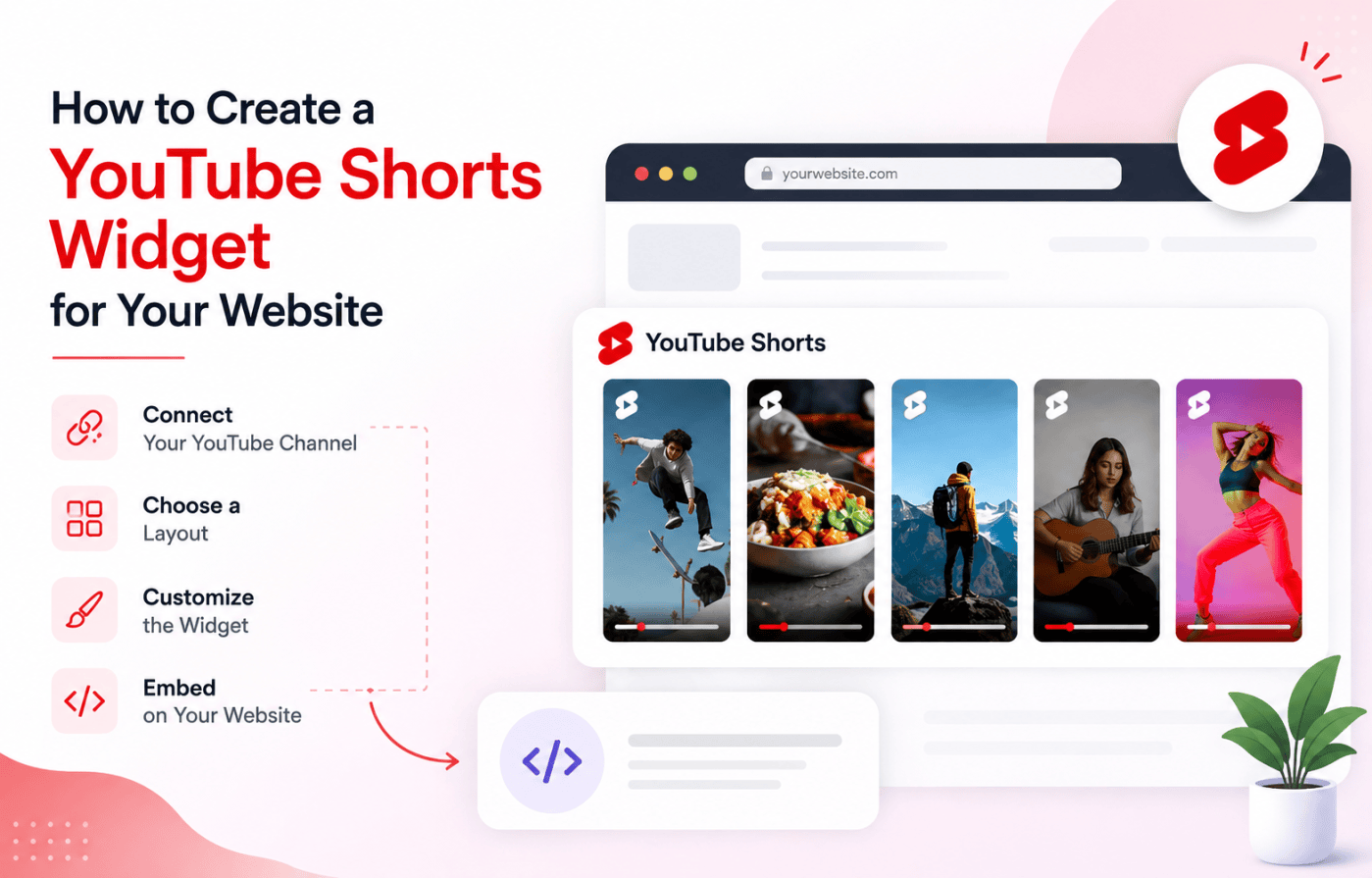
By creating a YouTube Shorts widget for your website, you can bring your short-form video content directly to your visitors. Instead of manually adding individual Shorts whenever you publish something new, a widget can collect and display your selected YouTube content in one place.
In this guide, we’ll explain how to create a YouTube Shorts widget for your website, what benefits it offers, where you can use it, and how to set one up using a no-code solution.
What Is a YouTube Shorts Widget?
A YouTube Shorts widget is an embedded section on a website that displays YouTube Shorts in a structured and customizable format.
Rather than placing one video at a time on a page, a widget can organize multiple Shorts into layouts such as a grid, carousel, or gallery.
For example, a clothing brand could create a Shorts widget showing styling videos, while a SaaS company could use one to display product tutorials and feature updates.
A widget can also make managing video content easier because the website does not need to be manually edited every time a new Short is published.
Why Create a YouTube Shorts Widget for Your Website?
Embedding short-form videos can make your website more dynamic while giving your existing YouTube content another place to reach your audience.
1. Showcase More Video Content
Instead of directing visitors to your YouTube channel, you can bring relevant Shorts directly to your website.
2. Increase Visitor Engagement
A visually appealing video feed can give visitors more opportunities to interact with your content.
3. Repurpose Your YouTube Content
If you already invest time in creating Shorts, a widget allows you to use those videos beyond YouTube.
4. Keep Your Website Content Fresh
With an automated feed, newly available content can be synchronized with the widget, reducing the need for repetitive manual updates.
5. Strengthen Your Brand Presence
A consistent stream of videos can help visitors understand your products, services, expertise, and brand personality.
YouTube Shorts Widget vs. Individual Video Embed
There is an important difference between embedding one YouTube Short and creating a YouTube Shorts widget.
An individual embed is useful when you want to feature one specific video.
A widget is more suitable when you want to display multiple Shorts and manage them as a collection.
| Individual YouTube Short | YouTube Shorts Widget |
| Displays one video | Displays multiple videos |
| Usually added individually | Can connect to a content source |
| Requires more manual management | Easier to manage multiple videos |
| Limited presentation options | Multiple layouts and customization options |
| Best for specific videos | Better for ongoing video content |
How to Create a YouTube Shorts Widget for Your Website
You don’t necessarily need development experience to create a Shorts widget. A social media aggregation tool can handle the collection, customization, and embedding process.
Tagembed supports YouTube content sources including Shorts, playlists, channels, and keywords, allowing users to create a customizable YouTube widget for their websites.
Step 1: Create Your Tagembed Account
Start by creating a Tagembed account or signing in if you already have one.
Once you’re inside the dashboard, create a social feed widget.
The process is designed for users who don’t want to write custom code. Tagembed also provides a WordPress plugin for users who manage their websites with WordPress.
Step 2: Select YouTube as Your Source
After creating your widget, choose YouTube from the available social networks.
You can then select Shorts as the content source.
According to Tagembed’s current YouTube setup, users can connect Shorts by entering the URL of their YouTube channel and creating the short feed.
Step 3: Connect Your YouTube Shorts
Enter the URL of the YouTube channel containing the Shorts you want to showcase.
Then select Create Feed.
The widget will collect the available content from your selected source.
This is particularly useful for brands that already maintain an active YouTube channel and want to reuse their short-form videos on their website.
Step 4: Customize Your YouTube Shorts Widget
Once your content has been collected, customize the widget so it fits your website.
Depending on the available settings, you can adjust elements such as:
- Layout
- Theme
- Background
- Fonts
- Colors
- Card styles
- Spacing
- Feed appearance
Choose the Right Layout
Your layout should depend on where you’re placing the widget.
A grid can work well for a dedicated video section.
A carousel can be useful when you want to save page space.
A larger gallery can work well on a dedicated video or resources page.
The goal is to make the videos easy to browse without distracting visitors from the rest of the page.
Step 5: Moderate the Content
Not every video on your YouTube channel necessarily needs to appear on your website.
For example, a business may have:
- Promotional videos
- Product videos
- Internal event clips
- Educational Shorts
- Customer-generated content
Step 6: Generate the Embed Code
After customizing your widget, move to the publishing or embedding section.
Choose your website platform and generate the embed code.
Tagembed’s publishing workflow allows users to select their website platform and adjust widget dimensions before generating the code.
Copy the generated code.
Step 7: Add the YouTube Shorts Widget to Your Website
Now open the website editor and add the widget where you want your Shorts to appear.
Depending on your platform, this may involve adding an HTML block, embed element, shortcode, or dedicated widget section.
For WordPress users, Tagembed’s plugin provides shortcode-based embedding and can also be used with supported WordPress editors such as Gutenberg and Elementor.
Once you’ve added the code or shortcode, publish the page and check the widget on both desktop and mobile devices.
Best Places to Add a YouTube Shorts Widget
Creating the widget is only part of the process. Where you place it can also influence how visitors interact with your content.
Homepage
A homepage section can introduce visitors to your latest Shorts as soon as they arrive.
You could use a heading such as:
“Watch Our Latest Shorts”
Product Pages
Show product demonstrations, tutorials, styling ideas, or customer experiences alongside product information.
Landing Pages
Use relevant Shorts to provide additional context without adding lengthy blocks of text.
Blog Posts
A Short can complement an article by demonstrating a process discussed in the post.
About Us Page
Show behind-the-scenes content, company culture, team activities, and events.
Testimonial Pages
Customer-generated Shorts can add a visual element to your social proof.
How Businesses Can Use YouTube Shorts Widgets
A YouTube Shorts widget isn’t only useful for influencers or video creators.
E-commerce
Online stores can showcase:
- Product demonstrations
- Unboxing videos
- Styling videos
- Customer content
- Product tips
SaaS Companies
Software companies can use Shorts for:
- Feature explanations
- Quick tutorials
- Product updates
- Troubleshooting tips
Educational Websites
Teachers and educational businesses can display:
- Quick lessons
- Study tips
- Explanations
- Course previews
Marketing Agencies
Agencies can highlight:
- Client work
- Marketing tips
- Campaign insights
- Industry updates
Personal Brands
Creators can showcase:
- Expert advice
- Tutorials
- Opinions
- Behind-the-scenes videos
Tips for Creating an Effective YouTube Shorts Widget
Keep Videos Relevant
Choose content that matches the purpose of the page.
A product page should prioritize product-related videos rather than unrelated Shorts.
Don’t Overload the Page
You don’t need to display every video you have.
A focused collection can create a cleaner user experience.
Make It Mobile-Friendly
Shorts are primarily designed around vertical viewing, so make sure your widget works well on smartphones.
Tagembed states that its YouTube widgets are responsive across desktop, tablet, and mobile devices.
Match Your Website Design
Choose fonts, colors, layouts, and spacing that fit naturally with your website.
Keep Your YouTube Channel Active
An automated widget is most useful when there is fresh content to display. Maintain a consistent publishing schedule so visitors continue to discover new videos.
How a YouTube Shorts Widget Saves Time
One of the biggest advantages of using a widget is reducing repetitive content management.
Imagine you publish a new Short every Monday, Wednesday, and Friday.
With manual embedding, someone may need to:
- Copy the new video URL.
- Open the website editor.
- Add the video.
- Adjust the layout.
- Update the page.
Why Use Tagembed to Create a YouTube Shorts Widget?
Tagembed is designed to help businesses collect, customize, moderate, and publish social media content on websites.
Its YouTube widget supports multiple YouTube sources, including channels, playlists, Shorts, and keywords.
Some of the features that can be useful for a YouTube Shorts widget include:
- No-code setup
- Multiple layouts
- Responsive design
- Content moderation
- Customization options
- Automatic updates
- Website platform compatibility
- WordPress integration
Common Mistakes to Avoid
Adding Too Many Videos
A huge video feed can make your page difficult to navigate.
Ignoring Mobile Users
Always test your widget on phones and tablets.
Using Irrelevant Shorts
Only display content that supports your website and audience.
Forgetting Moderation
Review your feed regularly to make sure the displayed content remains appropriate.
Choosing a Layout That Doesn’t Fit
A carousel might work on a narrow section, while a grid could be better for a full-width content area.
Final Thoughts
Creating a YouTube Shorts widget for your website is a practical way to turn your existing short-form video content into a valuable part of your website experience.
Instead of embedding individual Shorts one at a time, you can connect your YouTube content, customize how it looks, moderate the videos, and publish the feed directly on your website.
For businesses and creators that publish Shorts regularly, this approach can also reduce manual website maintenance. Your YouTube channel becomes a continuously updated content source while your website gives that content another place to reach your audience.
Whether you use WordPress, Shopify, Wix, Squarespace, Webflow, or an HTML website, a responsive YouTube Shorts widget can help you create a more visual and engaging website without building a custom video gallery from scratch.
Ready to showcase your YouTube Shorts? Create your widget, connect your YouTube content, customize the design, and embed it on your website to give your visitors a more engaging way to discover your videos.
Frequently Asked Questions
1. What is a YouTube Shorts widget?
A YouTube Shorts widget is a website element that collects and displays multiple YouTube Shorts in a customizable format such as a grid, carousel, or gallery.
2. How do I create a YouTube Shorts widget for my website?
You can use a YouTube feed tool such as Tagembed. Create an account, select YouTube and Shorts as your source, connect your channel, customize the feed, generate the embed code, and add it to your website.
3. Do I need coding knowledge to create a YouTube Shorts widget?
No. A no-code widget solution can handle the feed creation and embedding process without requiring you to build the widget from scratch.
4. Can I display multiple YouTube Shorts?
Yes. A Shorts widget is designed to display multiple videos in formats such as grids and carousels.
5. Will my YouTube Shorts widget update automatically?
An automated feed can synchronize with your connected YouTube content so that new content can appear without manually editing the website each time.
6. Can I add a YouTube Shorts widget to WordPress?
Yes. You can use a WordPress-compatible YouTube feed plugin. The Tagembed WordPress plugin supports YouTube feeds including Shorts, playlists, and channels.
7. Can I customize my YouTube Shorts widget?
Yes. You can customize elements such as layouts, themes, backgrounds, fonts, colors, and card styles depending on the widget settings available.
8. Where should I place a YouTube Shorts widget?
You can place it on your homepage, product pages, landing pages, blog posts, testimonial pages, About Us page, or dedicated video sections.


Leave a Reply