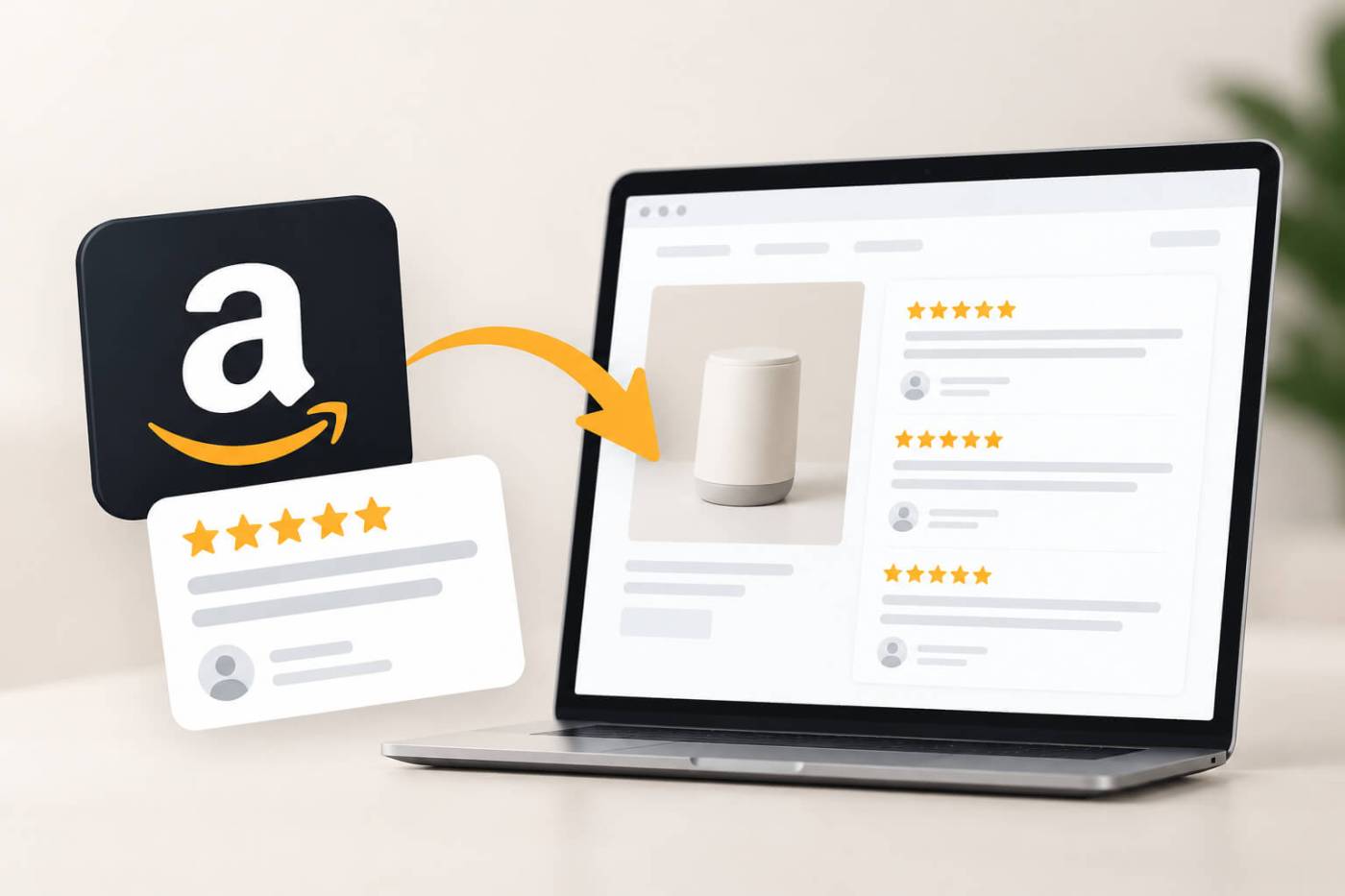
Amazon reviews can be one of the strongest forms of social proof for a product. They show potential customers what people who have already bought the product actually think about its quality, usability, durability, and overall value.
The challenge is that your website visitors may never see those reviews if they have to leave your site, search for the product on Amazon, and scroll through the listing themselves. Adding relevant Amazon reviews to your product or landing pages can bring that proof closer to the point where customers are deciding whether to buy.
But there is an important distinction: you cannot simply copy Amazon reviews from a product page and paste them onto your website however you want. Amazon’s Associates requirements state that customer reviews and star ratings must be obtained through its approved API and used according to the applicable license terms.
So, how do you embed Amazon reviews on your website without manually copying and maintaining them?
The answer depends on your technical setup and how much control you need over the review display.
Can You Embed Amazon Reviews on Your Website?
Yes, but the method matters.
If you only need to show a few reviews manually, you could technically create your own review section. However, copying reviews directly from Amazon creates problems around accuracy, updates, attribution, and Amazon’s terms.
For a proper integration, Amazon provides programmatic access to product information through its Creators API, the successor to the older Product Advertising API. Amazon says the Creators API is now the supported way to access its product catalog data, while PA-API 5 has been deprecated.
Amazon’s documentation also specifically states that customer reviews and star ratings cannot be displayed on your site unless you obtained the relevant review or rating through the Product Advertising API and comply with the applicable license agreement.
That makes the first question less about “How do I copy Amazon reviews?” and more about “How do I display Amazon review content through a compliant integration?”
Method 1: Use Amazon’s API
For developers who want a custom integration, Amazon’s API is the most direct option.
Amazon’s current Creators API requires you to be an Amazon Associate and register for API access. Once approved, you can use your credentials to make API requests and retrieve supported Amazon product information programmatically.
The general process looks like this:
- Join the Amazon Associates Program.
- Register for the Creators API.
- Obtain your API credentials.
- Identify the Amazon product you want to display.
- Request the available product and review information through the API.
- Build the review component on your website.
- Follow Amazon’s API license and content-display requirements.
This approach makes the most sense if you have developers who can build and maintain the integration and you need the review data to work within a larger custom product system.
It also gives you control over how the review component fits into your website. But that control comes with development and maintenance requirements. API credentials, requests, response handling, rate limits, product identification, and compliance all become part of your implementation.
For a website owner who simply wants an attractive Amazon review section on product pages, building the entire system from scratch can be considerably more work than necessary.
Method 2: Use an Amazon Reviews Widget
Amazon review widget is usually the simpler option for marketers, store owners, and teams that don’t want to build an API integration themselves.
Instead of developing the entire connection between your website and Amazon, a widget service handles the technical integration and gives you an embeddable review section.
The typical workflow is straightforward:
Amazon product → review widget → website
You provide the product information, configure how the reviews should appear, and add the generated widget to your website.
Depending on the platform, the final installation may involve adding a small JavaScript snippet, HTML code, or app/plugin integration. This makes the approach suitable for websites built with WordPress, Shopify, WooCommerce, custom HTML, and other common platforms.
The main advantage is that you don’t have to build and maintain the underlying review retrieval system yourself.
However, there is an important caveat: not every third-party Amazon review widget necessarily has the same data rights or Amazon authorization. Before using one, check how it obtains Amazon review data and whether its implementation complies with the applicable Amazon requirements.
How to Embed Amazon Reviews Using a Widget
If you are using a compatible Amazon review widget, the implementation generally takes only a few steps.
1. Choose the Amazon product
Open the Amazon product page containing the reviews you want to display.
You will generally need the product URL or another product identifier supported by the widget.
For example:
https://www.amazon.com/dp/ASIN
The exact Amazon marketplace matters as well. Amazon supports multiple localized marketplaces, including the US, UK, Canada, Germany, France, Italy, Spain, Japan, Australia, and India, among others.
2. Connect the product to your review widget
Add the Amazon product to the widget using the supported product URL or identifier.
The widget should then retrieve the review information it is authorized to display.
Avoid choosing a tool simply because it can scrape a public Amazon page. The important question is whether the tool has the appropriate rights and method for displaying the review content.
3. Customize the review display
Once the reviews are available, configure the presentation to match your website.
Depending on the tool, you may be able to choose between layouts such as:
- Review grids
- Review sliders
- Carousels
- Lists
- Rating summaries
- Compact review sections
Keep the design consistent with your website rather than making the review section look like a separate advertising element.
4. Add the widget to your website
Most widget-based solutions provide an embed code that you can add to the relevant page.
For example, a website may allow you to place the widget inside a product-page section, landing page, or dedicated testimonials area.
On WordPress, this may mean adding the code through a Custom HTML block. On Shopify, it could be added to a theme section or through the platform’s supported integration method. A custom-coded website may simply require inserting the supplied code into the appropriate HTML template.
5. Check the live page
After publishing, check the page on both desktop and mobile.
Pay particular attention to:
- Whether reviews load correctly
- Whether the review text is readable
- Whether the widget affects page layout
- Whether the section works on mobile
- Whether links and review attribution work correctly
- Whether the displayed content remains verifiable on the associated Amazon product page
This last point is particularly important because Amazon’s policies place requirements around how customer reviews are displayed and verified.
What About Simply Copying Amazon Reviews?
This is where many website owners go wrong.
You may see an Amazon review you like and think you can copy the text, add the reviewer’s name and star rating, and place it on your website.
That is not the same thing as an approved Amazon review integration.
Amazon’s Associates requirements explicitly restrict displaying or using customer reviews or star ratings on your site unless they were obtained through the approved API and used according to the applicable license agreement.
There are also presentation requirements. For example, Amazon’s advertising policies state that Amazon customer reviews must not be altered, must remain verifiable on the associated product detail page, and should not include the customer’s name in the displayed review.
So if your goal is to use Amazon reviews as website social proof, don’t treat them like ordinary testimonials that you can freely copy and edit.
Amazon Reviews vs. Your Own Website Reviews
It is also worth deciding whether Amazon reviews are actually the best review source for your page.
Amazon reviews are particularly useful when the product is already established on Amazon and customers recognize the marketplace. They can provide independent-looking social proof on a brand website without requiring visitors to leave the page to see what Amazon shoppers are saying.
Your own website reviews, however, can be easier to control and integrate into your broader customer-review strategy.
If you sell through several channels, you may ultimately want a review display that combines different sources rather than relying exclusively on Amazon.
For example, a product page could potentially have:
| Review source | Best suited for |
|---|---|
| Amazon reviews | Products with strong Amazon purchase history |
| Website reviews | Direct customers and first-party feedback |
| Google reviews | Brand or local-business reputation |
| Social content | Visual customer experiences and UGC |
| Industry-specific review platforms | B2B or niche products |
The right choice depends on where your customers actually leave feedback and which source is most relevant to the purchase decision.
Where Should You Place Amazon Reviews?
The best location is usually close to the point where a visitor is evaluating the product.
For an ecommerce product page, that could mean placing the review section below the product information, near the purchase decision, or alongside other customer feedback.
For a landing page, you might use a smaller selection of relevant reviews near the product’s primary value proposition.
The goal isn’t to fill the page with reviews. It is to make genuine customer feedback available at the moment it can answer a buyer’s hesitation.
If someone is wondering whether a product is durable, easy to use, worth the price, or suitable for a particular use case, the most useful reviews are the ones that address those questions.
How to Make an Amazon Review Section More Useful
Simply displaying a large number of reviews doesn’t automatically make the section effective.
Think about what a prospective customer needs to know.
A useful review display should make it easy to understand the overall sentiment and then explore individual experiences. If your implementation supports it, features such as star ratings, review sorting, pagination, or filtering can make a large collection of reviews easier to navigate.
At the same time, avoid selectively presenting reviews in a way that gives visitors a misleading impression. Customer feedback is valuable precisely because it represents real experiences rather than carefully written marketing copy.
Amazon also prohibits attempts to manipulate customer reviews, including compensated or incentivized reviews intended to influence the content of customer feedback.
Which Method Should You Choose?
For most website owners, the decision comes down to how much technical control they need.
| Method | Best for | Technical effort |
|---|---|---|
| Amazon Creators API | Custom websites and developer-led integrations | High |
| Third-party review widget | Marketers, ecommerce teams, and website owners | Low to medium |
| Manual copying | Generally not suitable for compliant Amazon review display | — |
If you’re building a custom ecommerce system and already have developers working with Amazon’s APIs, the Creators API gives you a foundation for a custom implementation.
If you simply want to display Amazon reviews on an existing website without building the infrastructure yourself, a reputable review widget can be much more practical.
The important part is not just whether the reviews appear on your website. The method used to obtain and display them needs to be appropriate for Amazon’s current requirements.
Frequently Asked Questions
Can I embed Amazon reviews on my WordPress website?
Yes. A WordPress site can display Amazon reviews through an appropriate API-based integration or a compatible third-party widget. With a widget, installation typically involves adding the supplied embed code to the relevant WordPress page or template.
Can I add Amazon reviews to Shopify?
Yes, provided you use an integration that is appropriate for displaying Amazon review content. Depending on the solution, you may add the review section through a Shopify app, theme integration, or custom implementation.
Do I need coding knowledge to embed Amazon reviews?
Not necessarily. A third-party widget can eliminate most of the development work. A custom Amazon API integration, however, requires development knowledge because the website needs to communicate with Amazon’s API and handle the returned data correctly.
Can I copy and paste Amazon reviews onto my website?
You should not assume that you can. Amazon’s Associates requirements specifically restrict the use of Amazon customer reviews and star ratings unless they have been obtained through the approved API and used in accordance with the applicable license terms.
Can Amazon reviews update automatically?
They can when your implementation uses an appropriate programmatic integration that retrieves the supported data. The exact update behavior depends on the API or widget you’re using, its data access, and its refresh mechanism.
Is the old Amazon Product Advertising API still the best option?
No. Amazon states that Product Advertising API 5 has been deprecated and that the Creators API is its supported successor for accessing Amazon’s product catalog. Existing PA-API 5 integrations should be migrated according to Amazon’s documentation.
Can I display Amazon reviews alongside reviews from my website?
Yes, provided each source is handled according to its own applicable terms. Combining review sources can be useful when customers evaluate your product across multiple channels, but make the source of each review clear so visitors understand where the feedback comes from.
 Social Feeds
Leave a comment