
The easiest way to add Google reviews to your website is to use a Google Reviews widget that connects to your Google Business Profile and automatically displays your reviews. You can also add individual reviews manually, embed your Google Maps listing, use Google’s APIs for a custom integration, or simply link visitors to your Google review page.
For most businesses, a widget is the most practical option because it removes the need to copy and update reviews manually. It can also give you control over the layout, appearance, filtering, and placement of your reviews.
Below are the main ways to add Google reviews to your website, starting with the simplest option for businesses that want an automatically updated review section.
1. Add Google reviews with the Taggbox Google Reviews Widget
Taggbox Free Google Reviews Widget is a no-code option for collecting Google reviews and displaying them directly on your website. You can connect your Google Business Profile or select a Google business location, choose the reviews you want to display, customize the widget, and embed it on your website without building your own API integration. Taggbox currently offers layouts such as grids, carousels, lists, sliders, and rating badges, along with moderation and filtering controls.
This approach is particularly useful if your business receives reviews regularly. Once the source is connected, new reviews can be synchronized to the widget, so you don’t have to repeatedly copy reviews from Google and paste them into your website. You can also control how the review section looks so it fits naturally with the rest of your site’s design rather than appearing as a separate third-party element.
How to add Google reviews with Taggbox
The setup can be completed in four main steps:
1. Connect your Google reviews
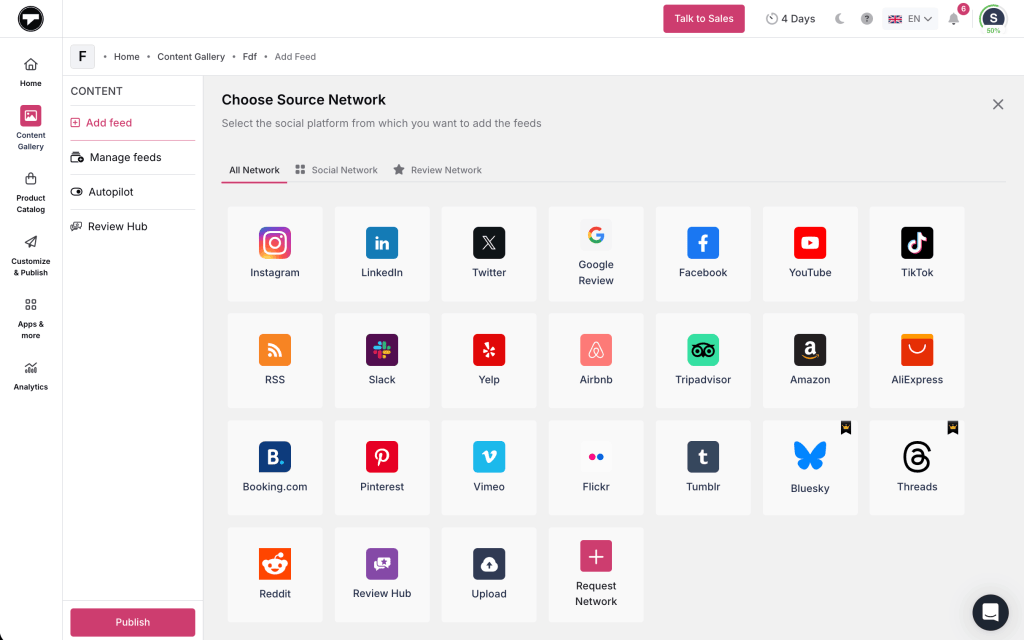
Create or log in to your Taggbox account and select Google Reviews as the content source. You can connect your Google Business Profile or select the relevant Google business location to collect reviews.
2. Moderate the reviews
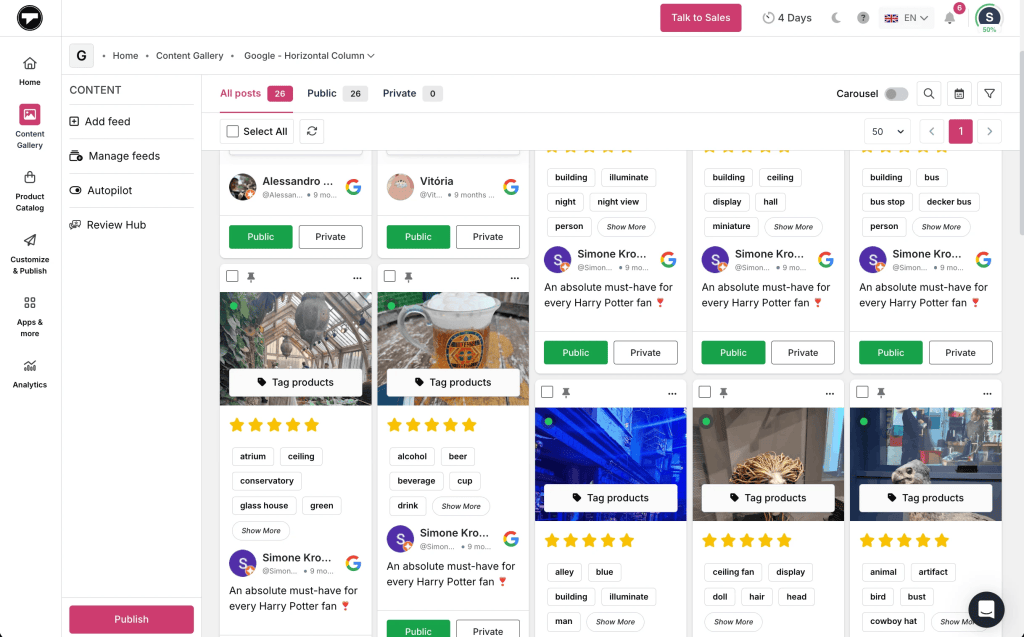
Once your reviews are collected, use the moderation controls to decide which content you want to display. Taggbox provides filtering options based on factors such as rating, keyword, and date, allowing you to keep the widget relevant to the page where it appears.
3. Customize the widget
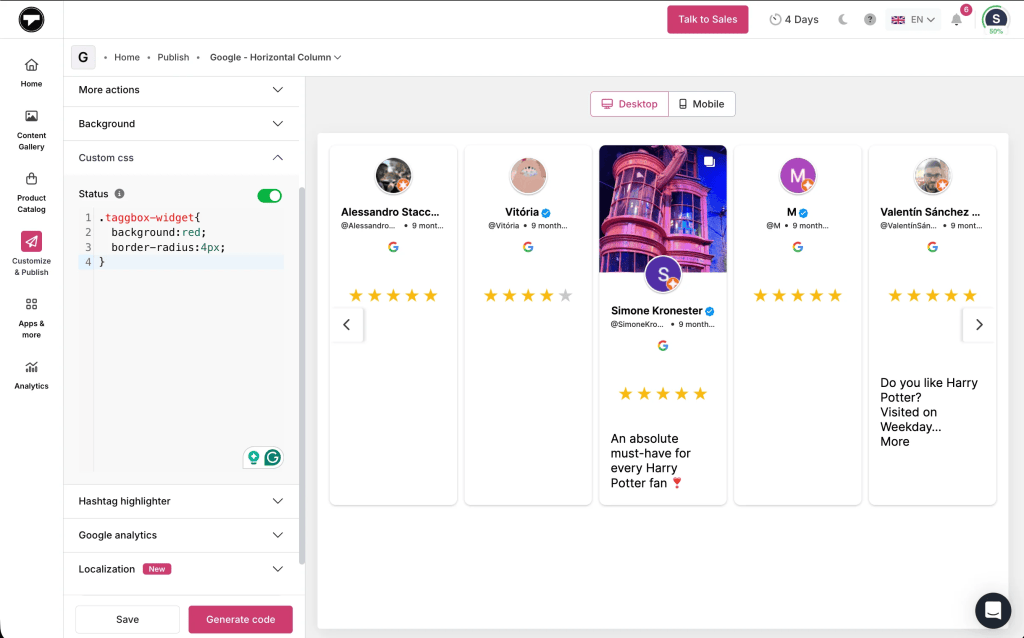
Choose a layout such as a grid, carousel, list, slider, or badge, then adjust colors, fonts, spacing, cards, and other visual elements to match your website.
4. Publish it on your website
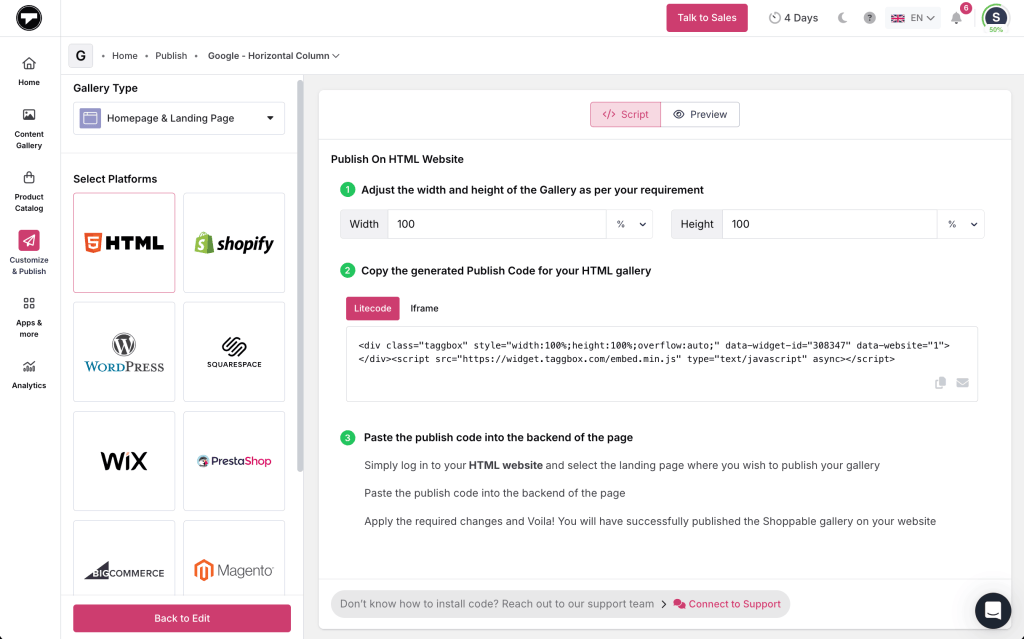
Generate the widget code and add it to the relevant section of your website. Taggbox provides WordPress and other CMS integrations as well as embed options for websites that support HTML.
For WordPress specifically, Taggbox provides a dedicated Google Reviews Widget plugin and supports adding the widget through a shortcode or Custom HTML block.
Why use a Google reviews widget?
A widget makes sense when you want more than a static testimonial section. Instead of manually updating the page whenever a customer leaves a new review, the connected feed can keep the website current.
It is also useful when you want to manage several locations or control which reviews appear on different pages. Taggbox supports multi-location review management, so businesses with multiple branches can manage reviews from different Google Business Profiles through the same platform.
Taggbox also offers features such as a Review Hub, a review-request CTA, AI-assisted review summarization and moderation, and widget analytics. These aren’t necessary if all you need is a basic review display, but they can be useful when reviews are part of a broader customer-feedback strategy.
2. Add individual Google reviews manually
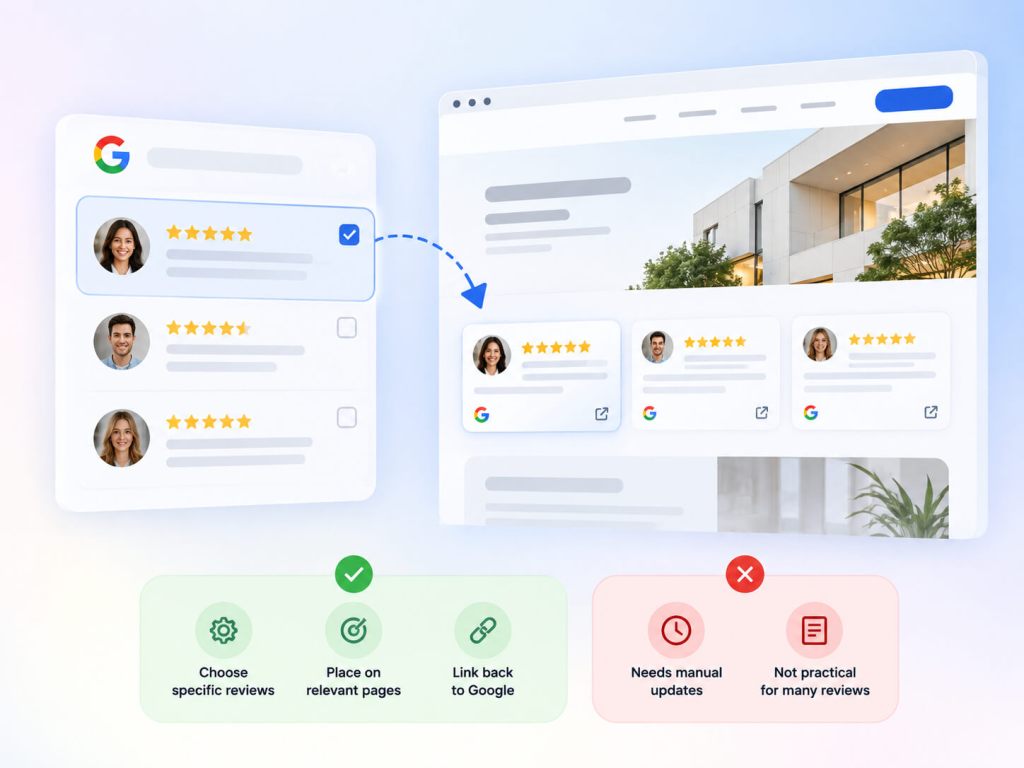
If you only want to showcase a few customer experiences, you don’t necessarily need a review feed.
You can feature selected customer reviews within your website’s testimonial sections and link them back to the original Google review or your Google Business Profile. This can work particularly well when a review directly supports the subject of a page.
For example, a dental clinic could feature a review that specifically discusses a patient’s experience with a treatment. A hotel could highlight a review mentioning its location or service. A software company could feature a customer comment about a particular product feature.
The advantage is control. You decide exactly which reviews appear and where. The drawback is maintenance: if you want to display many reviews or keep the section updated frequently, manual copying quickly becomes inconvenient.
When reproducing customer reviews, keep the wording accurate and don’t edit a review in a way that changes what the customer actually said.
Also Read: The Benefits of Displaying Google Reviews on Your Website
3. Embed your Google Maps listing
If your main goal is to help visitors find your physical location and access your Google presence, embedding Google Maps can be enough.
A Google Maps embed places your business location directly on your website. Visitors can then interact with the map and follow the listing to Google for additional information, including reviews.
This is different from displaying the reviews directly on the page. A map works well on contact, location, and store pages, while a dedicated review widget is more appropriate when customer feedback itself is an important part of the page.
For many local businesses, using both can make sense: display selected reviews near an important conversion point and place the map closer to the address and contact details.
4. Build a custom Google reviews integration with an API
If you have development resources and need complete control over how reviews are handled, you can build a custom integration using Google’s APIs.
A custom integration can provide more control over the way review information is retrieved and incorporated into your website. This may be useful for a large website, a web application, a multi-location platform, or a business with requirements that a standard widget cannot accommodate.
However, this is considerably more involved than installing a widget. Developers need to handle authentication, API configuration, data retrieval, error handling, Google’s applicable policies and attribution requirements, and ongoing maintenance when the underlying platform changes.
For a typical business website, building a custom integration is usually unnecessary when a maintained widget already provides the functionality you need.
5. Add a direct link to your Google reviews
Sometimes you don’t need to display the reviews on your website at all.
If you simply want visitors to read your Google reviews or leave their own review, add a clear link or button that takes them to your Google Business Profile or review form.
For example, you could use buttons such as:
- Read our Google reviews
- See what our customers say
- Leave us a Google review
This is the lightest approach because it doesn’t require a widget, external script, or custom development. It can also be useful alongside an on-site review section: visitors can read a few featured reviews on your website and then click through to see the complete collection on Google.
Google provides businesses with a shareable review link and QR code that can be used to make review requests easier.
Which method should you use?
The right option depends on whether you want a static selection of testimonials, an automatically updated feed, or a completely custom integration.
| Method | Best for | Automatic updates | Technical effort |
|---|---|---|---|
| Taggbox Google Reviews Widget | Automated review feeds and customizable displays | Yes | Low |
| Manual reviews | A few selected testimonials | No | Very low |
| Google Maps embed | Locations and directions | Google-managed | Low |
| Custom API integration | Highly customized websites | Yes | High |
| Direct review link | Sending visitors to Google | No | Very low |
For most businesses that want to display an ongoing collection of Google reviews, a dedicated review widget is the most practical middle ground. If you only want two or three testimonials, manual placement may be simpler. If your website has unusual technical requirements, a custom API integration may be justified.
How to add Google reviews to a WordPress website
WordPress gives you several ways to display Google reviews, but you don’t need to edit your theme files for most implementations.
Using the Taggbox WordPress plugin
If you choose Taggbox, you can use its dedicated WordPress Google Reviews Widget to connect and display your reviews. After creating the widget, you can add it to WordPress through the supported plugin, shortcode, or Custom HTML block.
This is useful for businesses that want to manage the review feed separately from their WordPress content while still controlling where it appears on the website.
Using an embed code
Some review services generate an embed code rather than relying on a WordPress-specific plugin.
In WordPress, you can generally place this code inside a Custom HTML block or the appropriate element in your page builder. This approach can work with Gutenberg and visual builders that support custom HTML.
The advantage is that the same widget can often be used across different website platforms. The trade-off is that the website becomes dependent on the external service providing the widget.
Using a custom WordPress integration
A developer can also integrate Google review data directly into a WordPress theme or custom plugin. This gives you greater control but also makes your team responsible for maintaining the integration.
Unless you have a specific reason to build it yourself, a maintained widget or plugin is generally easier to manage.
Where should you display Google reviews?
Where you place your reviews matters more than simply having them somewhere on the website.
A homepage review section can introduce social proof to visitors who are still learning about your business. On a service page, reviews that discuss that particular service can be more useful because they address the questions a visitor is likely to have at that point.
You can also place reviews near contact forms, appointment buttons, consultation requests, pricing sections, or other conversion points. For ecommerce websites, relevant customer feedback can sit close to product information or purchase-related sections.
The goal isn’t to fill every page with testimonials. A few relevant reviews placed where they help visitors make a decision are generally more useful than a large collection of unrelated comments.
Should you display all your Google reviews?
Not necessarily.
A business with hundreds of Google reviews doesn’t need to put hundreds of reviews on every page. Doing so can make the page unnecessarily long and difficult to navigate.
Instead, select reviews according to the context of the page. A homepage could show a rotating selection of recent reviews, while a specific service page could display reviews that mention that service.
If your review widget provides filtering or moderation, use those controls to keep the displayed content relevant. Taggbox, for example, provides moderation and filtering options that can help businesses manage which reviews appear in their widgets.
At the same time, don’t create a misleading impression by presenting a small hand-picked group as though it represents every customer experience. If you are featuring selected reviews, make the context clear.
How to get more Google reviews from your website
Displaying reviews and collecting new reviews are separate goals.
If you want more customers to leave reviews, give them a direct path to your Google review form. You can place a review CTA on your website, include a review link in post-purchase emails, or use a QR code in physical locations.
Some review widgets also include review-request functionality. Taggbox, for example, provides a Write a Review CTA and Review Hub designed to help businesses send customers toward the Google review process.
Keep the request neutral and ask for genuine feedback. Don’t ask customers to leave a particular rating or create incentives specifically in exchange for positive reviews.
The objective should be to make it easy for real customers to share their actual experience.
How to make Google reviews look good on your website
Your review section should look like part of your website, not an unrelated widget pasted into it.
Match the review display to your existing typography, spacing, colors, and visual style. Make sure the text remains easy to read on mobile and avoid displaying so many reviews at once that the section overwhelms the page.
A carousel can work well when horizontal space is limited, while a grid can make sense for a dedicated testimonials section. A compact rating badge can work near a call-to-action when you want to reinforce trust without taking up much space.
You should also make sure the Google attribution and other applicable display requirements are handled correctly when using Google’s review content.
Before publishing, test the widget on mobile and desktop and check what happens when the external review service is temporarily unavailable.
Can you add Google reviews without a plugin?
Yes.
A plugin is only one option. You can use a hosted review widget, manually feature selected reviews, embed your Google Maps listing, add a direct review link, or build a custom API integration.
If you only need a link to your Google profile, adding a button is probably all you need. If you want an automatically updated feed, a widget is more practical than manually copying every new review.
For WordPress users who want an automated feed without development work, a dedicated Google reviews plugin or a service such as Taggbox can handle the connection and presentation for you.
Do Google review widgets slow down a website?
They can affect performance depending on how they are implemented.
A widget may load external JavaScript, images, fonts, or review data, so its impact depends on the provider and how much content you display. A large review feed with many images can naturally require more resources than a small rating badge.
When choosing a widget, look for sensible caching, asynchronous loading, responsive layouts, and controls over how many reviews are displayed. Also avoid loading a large number of reviews simply because the tool allows it.
For example, if a page only needs four relevant customer experiences, displaying dozens of reviews is unlikely to provide enough additional value to justify the extra content and resources.
Are Google reviews better than manually written testimonials?
They serve slightly different purposes.
A manually written testimonial gives you complete control over what appears on the page, while a Google review provides a direct connection to feedback published on an external review platform.
Google reviews can also make it easier for visitors to verify the source of the feedback because they can follow the review or business profile back to Google.
For that reason, many businesses use both: selected customer testimonials for specific marketing pages and a Google review widget or link for visitors who want to see broader customer feedback.
Frequently asked questions
Q.1 Can I display Google reviews directly on my website?
Yes. You can display Google reviews using a review widget, supported API integration, or manually selected reviews. A widget is usually the easiest option if you want the content to update without manually changing your website.
Q.2 How can I add Google reviews to WordPress?
You can use a Google reviews plugin, embed a third-party review widget, manually add selected reviews, or create a custom API integration. A dedicated plugin or widget is generally the simplest approach for non-developers.
Q.3 Can I add Google reviews for free?
Yes. You can add a simple link to your Google reviews for free, and some review widget providers offer free plans. Taggbox currently offers a free starting option for its Google Reviews Widget, subject to its plan limits.
Q.4 Will new Google reviews automatically appear on my website?
They can if you use a connected review widget or API-based integration that supports automatic updates. Manually added reviews will not update automatically. Taggbox’s Google Reviews Widget automatically synchronizes connected review sources according to its plan and update settings.
Q.5 Can I choose which Google reviews appear?
This depends on the method you use. Manual placement gives you direct control, while some review widgets provide moderation and filtering tools. Taggbox supports filtering and moderation options for managing the reviews displayed in the widget.
Q.6 Can I customize the appearance of Google reviews?
Yes. Review widgets can provide controls for layouts, colors, fonts, spacing, cards, and other design elements. Taggbox supports layouts including grids, carousels, lists, sliders, and badges.
Q.7 Can I add Google reviews to a website without coding?
Yes. A hosted review widget can generate the code needed to display your reviews, so you don’t need to build the integration yourself. Taggbox, for example, provides no-code embedding options and WordPress support.
Q.8 Can I ask customers to leave Google reviews from my website?
Yes. You can add a button or link that sends customers to your Google review form. Some review widgets also provide a built-in review CTA to make the process easier.
Q.9 Can I offer customers a discount for leaving a Google review?
You should not offer incentives specifically in exchange for reviews or attempt to influence the rating customers leave. Review requests should encourage genuine, voluntary feedback.
Final thoughts
If you want to add Google reviews to your website, you don’t need to build a complicated integration. For most businesses, a Google review widget provides the simplest way to connect customer feedback with the website and keep the display updated.
A tool such as the Taggbox Google Reviews Widget is useful when you want an automated, customizable display without handling the technical side of the integration yourself. You can connect your Google Business Profile, moderate the content, customize the layout, and embed the widget on your website.
If you only need a few customer comments, manually featuring selected reviews may be enough. If your primary goal is to send customers to Google, a direct review link is simpler. And if your website has specialized technical requirements, a custom API integration gives your development team greater control.
The best implementation is ultimately the one that fits how your business actually uses reviews: keep the content relevant to the page, make it easy to read, and give visitors a clear path to explore your full Google presence when they want more.


Leave a comment